Author: light up tech

  • 🔍 Did Meta Hide Internal Research About the Mental Health Impact of Facebook and Instagram?

    A new class action lawsuit filed by U.S. school districts has resurfaced long-standing concerns about the impact of social media on youth mental health — and whether tech companies have been fully transparent about the risks.

    The lawsuit, filed by law firm Motley Rice, accuses Meta and other platforms (including Google, TikTok, and Snapchat) of intentionally concealing internal findings showing that their products may negatively affect users’ psychological well-being.

    At the center of the allegation is a Meta research initiative known as Project Mercury.


    📁 What Was Project Mercury?

    Project Mercury was an internal Meta study conducted with Nielsen to examine how users felt after “deactivating” Facebook and Instagram for one week.

    According to internal documents referenced in the lawsuit:

    • Users who paused Facebook for a week reported lower levels of depression, anxiety, loneliness, and social comparison.

    These results were communicated privately among Meta staff, according to Reuters.
    But instead of publishing them, Meta halted the project, arguing that the study had been influenced by negative media narratives.


    🧪 Internal Reactions: “This is like the tobacco industry…”

    The lawsuit claims that, internally, several Meta researchers:

    • Validated the study’s findings, confirming that Facebook and Instagram can have a causal impact on negative social comparison.
    • Expressed concern that hiding the results would mirror the behavior of industries that suppressed evidence of harm. One staff member compared it to the tobacco industry “doing research, knowing cigarettes were bad, and then keeping that information to themselves.”

    Another staffer reportedly reassured Nick Clegg, then Meta’s head of global public policy, that the findings were legitimate — despite the company’s public position.


    🏛️ Meta’s Statements to Congress

    The filing also alleges that Meta told Congress it could not quantify whether its products harm teenage girls, even though internal research allegedly showed a causal link to negative mental health impacts.

    This discrepancy is a major focus of the legal complaint.


    📣 Meta’s Response

    Meta spokesperson Andy Stone denied the allegations, arguing that:

    • The methodology used in Project Mercury was flawed.
    • Meta has spent more than a decade listening to parents, researching youth well-being, and improving product safety.
    • The lawsuit relies on “cherry-picked quotes and misinformed opinions.”

    A hearing is scheduled for January 26.


    ⚠️ Additional Allegations Against Social Media Platforms

    The lawsuit also accuses Meta and other companies of:

    • Encouraging children under 13 to use their platforms
    • Failing to adequately address child sexual abuse material
    • Promoting the use of their apps among teens in school environments
    • Attempting to pay child-focused organizations to publicly defend their product safety

    These broader allegations reflect growing concerns about youth exposure to social media.


    🧭 Final Thoughts

    Whether the claims will be upheld in court remains to be seen.
    But the lawsuit raises important questions:

    • What responsibility do social media giants have to disclose internal research?
    • Are these platforms doing enough to protect younger users?
    • And how can families, schools, and policymakers navigate the mental-health risks associated with online platforms?

    Regardless of the outcome, one thing is clear: transparency in tech is no longer optional — it’s essential.

    Recourse: Cyber News

    #CyberSecurity #TechNews #Meta #Facebook #Instagram #MentalHealth #OnlineSafety #DigitalWellbeing #SocialMediaEthics #YouthSafety #AIEthics

  • 🔒 Is Google Using Your Gmail to Train Gemini AI? Here’s What You Need to Know

    Concerns about Google’s data practices have resurfaced after discussions online claimed that Gmail is now being scanned to help train Google’s latest AI model, Gemini.
    While the topic has caused confusion and worry among users, the truth is more nuanced.

    This blog post breaks down what’s real, what’s exaggerated, and how you can control your privacy settings.


    📌 What’s Actually Happening?

    Google has always scanned Gmail messages for essential features such as:

    • spam and phishing detection
    • malware scanning
    • inbox categorization (Primary, Social, Promotions)
    • Smart Compose and AI-assisted replies

    These processes are not new—they’ve been part of Gmail for over 15 years.

    What’s new is that some of these features now rely on Gemini AI, Google’s advanced language model.
    This means that Gmail data can be used to improve AI-based features if certain settings are enabled.


    🤖 Does Google Use Your Emails to Train Gemini?

    Yes, but only if “Smart Features” are turned on.

    Google is not secretly opening and reading emails. Instead, the data is processed automatically the same way it has been for years, but now the processing also helps improve Gemini-powered features.

    When you keep Smart Features enabled, your Gmail content may be used to improve:

    • Smart Compose
    • Smart Reply
    • Categorization
    • Document summaries
    • Search suggestions

    If you turn Smart Features off, Google stops using your Gmail content for AI training and advanced personalization.


    🕵️‍♂️ Is This a New Privacy Issue?

    Not exactly.

    The scanning behavior itself is not new. Google has always processed emails to make Gmail functional and secure.

    The main updates are:

    • Google now uses Gemini to power some Gmail features
    • Google clarified this in recent privacy and UI updates
    • Users can choose to opt out more clearly than before

    However, online articles and social media posts often make the situation sound like a sudden privacy “breach,” which can be misleading.


    🔒 How to Opt Out of Google AI Training in Gmail

    If you don’t want your Gmail content being used to improve Gemini or AI-powered features, here’s how to turn it off.

    1️⃣ Gmail Settings (Desktop or Mobile)

    1. Open Gmail → Settings
    2. Select See all settings (desktop) or Settings (mobile)
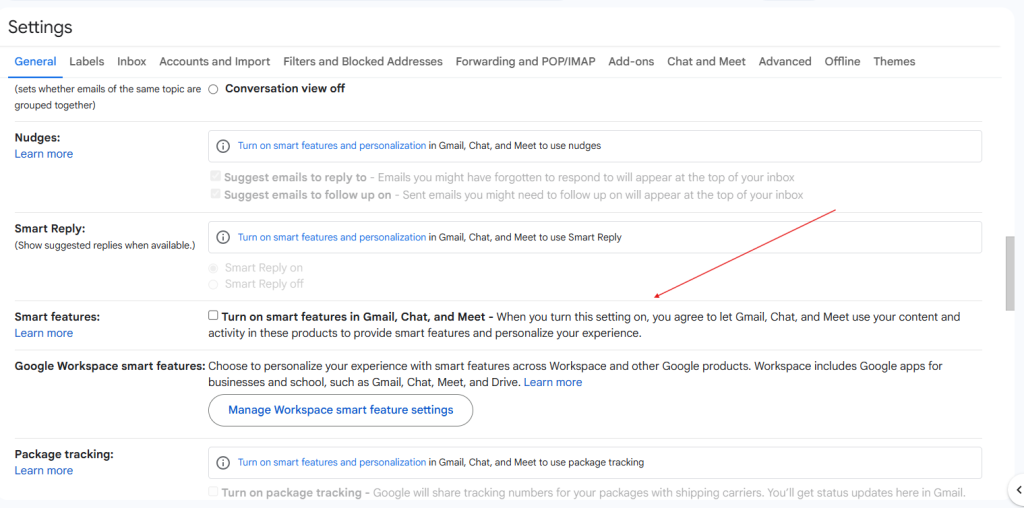
    3. Find Smart features in Gmail, Chat, and Meet
    4. Turn off Smart Features
    5. Click Save changes
    6. Refresh Gmail or sign out and sign back in

    2️⃣ Google Workspace Smart Features

    1. Open Google Account → Data & Privacy
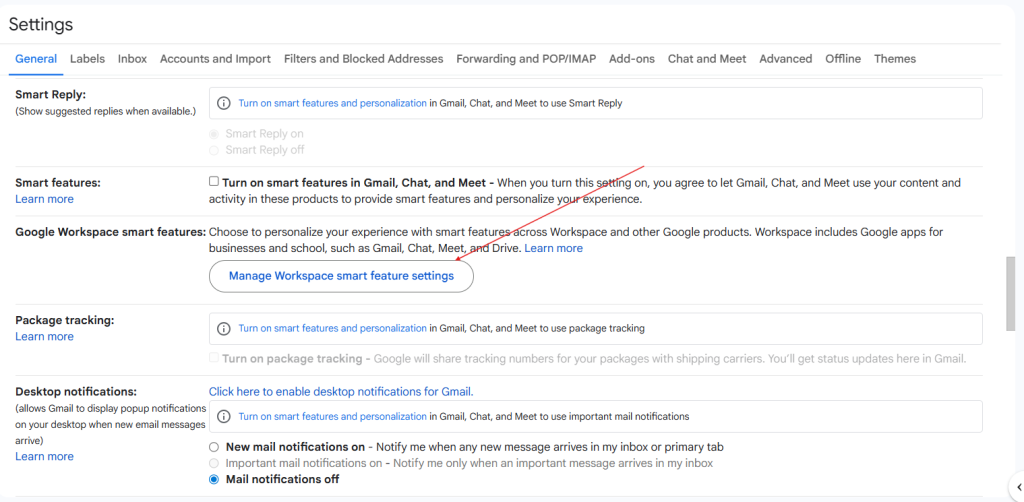
    2. Go to Google Workspace smart features
    3. Click Manage Workspace smart feature settings
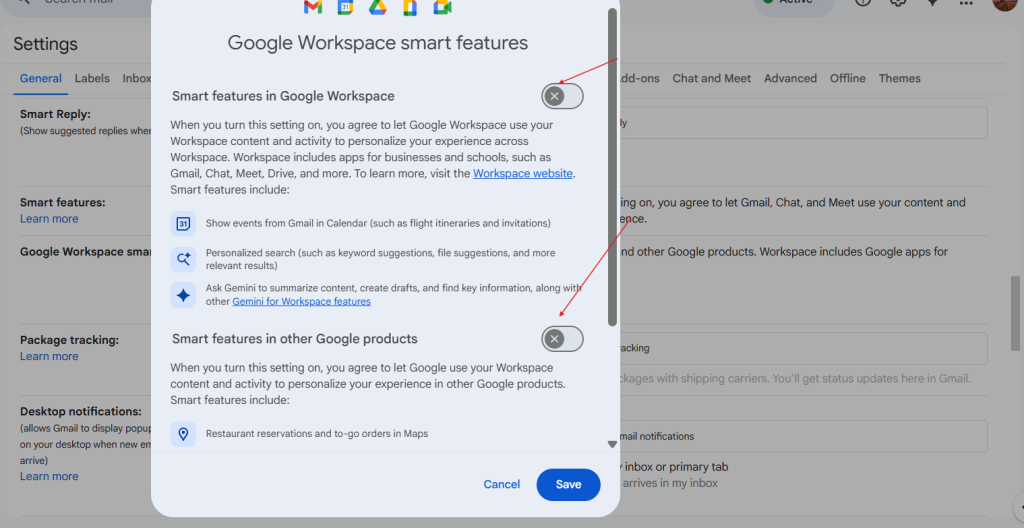
    4. Disable both:
      • Smart features in Google Workspace
      • Smart features in other Google products
    5. Save changes

    ⚠️ Note:
    Turning off Smart Features will disable conveniences like Smart Compose and automatic inbox categories.


    🧪 Why the Confusion?

    Some viral posts referenced a past lawsuit where Google was fined for collecting Android data even when users opted out.
    However:

    • That lawsuit is not related to Gmail
    • It is not connected to Gemini
    • It involved Web & App Activity, not emails

    Because of this, many people mistakenly combined the two issues.


    🛡️ Final Thoughts

    This situation highlights the importance of regularly reviewing our privacy settings—especially as AI becomes more integrated into the tools we use every day.

    Here’s the bottom line:

    • ✔ Gmail scanning is not new
    • ✔ Gemini now powers some Gmail features
    • ✔ You can choose to opt out
    • ✔ Transparency and awareness are key

    Staying informed helps us protect our privacy without falling into misinformation or unnecessary fear.


    🧭 Want to Stay Safer Online?

    Follow for more breakdowns on:

    • cybersecurity news
    • digital privacy
    • AI ethics
    • practical security tips
    • how to manage your digital footprint

    #CyberSecurity #Google #Gmail #GeminiAI #DataPrivacy #AIEthics #OnlineSafety #TechBlog

  • What Today’s Snapchat Outage Tells Us About Cloud Dependence and AWS

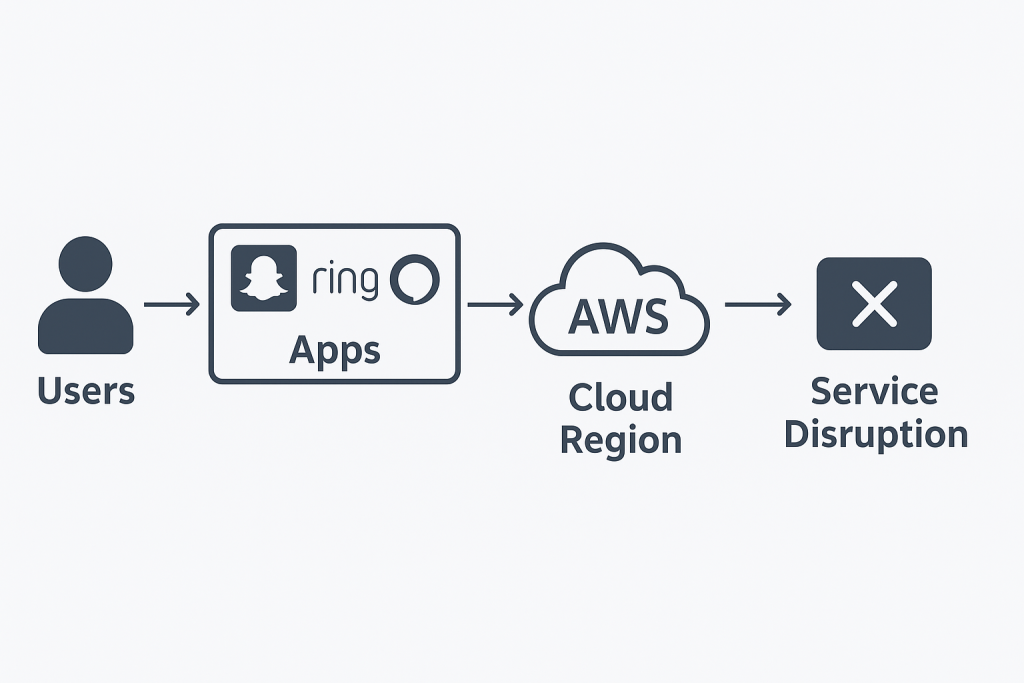
    If you opened Snapchat today and couldn’t log in, you probably saw an error message or couldn’t access your account at all. You weren’t the only one — a massive AWS (Amazon Web Services) outage disrupted several major online services, including Snapchat, Ring, and even Alexa.

    What Is AWS?

    AWS is Amazon’s cloud computing platform

    — one of the largest in the world. It provides services like:

    • Servers and databases

    • File storage

    • Networking and security tools

    Instead of managing physical servers, companies “rent” computing power from AWS to keep their apps running smoothly across the globe.

    Why Do Apps Use AWS?

    Apps like Snapchat, Netflix, and Spotify use AWS because it’s:

    • Scalable — it can handle millions of users at once

    • Reliable — usually very stable and secure

    • Efficient — cheaper than building a private data center

    But that same convenience creates a single point of failure: if AWS goes down, everything hosted on it is affected.

    What Happens During an Outage?

    When a specific AWS region (like US-East) experiences technical issues — such as power failure, network errors, or configuration problems — apps connected to that region may stop working or partially fail.

    The Cybersecurity Lesson

    As a cybersecurity student, this event highlights an important concept: cloud dependency and resilience.

    Organizations need to prepare for such risks by:

    • Using multi-cloud strategies (e.g., AWS + Google Cloud + Azure)

    • Implementing disaster recovery and redundancy plans

    • Monitoring uptime and availability as part of their security posture

    In cybersecurity, we often talk about the CIA triad — Confidentiality, Integrity, and Availability.

    AWS outages remind us that availability is just as critical as security itself.

    Even in the cloud, resilience is key.

  • 🔒 How to Protect Your iPhone: A Step-by-Step Settings Guide

    Your iPhone is powerful and convenient, but many default settings trade your privacy for ease of use. The good news? With a few quick changes, you can make your device much safer without breaking your daily routine.

    Here’s a simple, step-by-step guide you can follow in Settings to harden your iPhone.

    1. Privacy & Tracking

    • Go to Settings → Privacy & Security
    • Turn off Analytics & Improvements (all options).
    • Tap Tracking → disable Allow Apps to Request to Track.
    • Tap Apple Advertising → turn off Personalized Ads.

    2. Safari Security

    • Go to Settings → Safari
    • Enable Block Pop-ups.
    • Turn on Prevent Cross-Site Tracking.
    • Enable Fraudulent Website Warning.
    • Under Hide IP Address, choose From Trackers.
    • At the bottom, enable Advanced Tracking & Fingerprinting Protection → For All Browsing.
    • Bonus: Browse in Private Mode for sensitive sessions.

    3. App Permissions

    • Go to Settings → Apps → [choose app]
    • Turn off Background App Refresh.
    • Set permissions to While Using the App (camera, mic, location).
    • Remove apps you rarely use.

    4. Lock Screen & Passcode

    • Go to Settings → Display & Brightness → Auto-Lock → set to 30 sec–1 min.
    • Go to Settings → Notifications → Show Previews → set to When Unlocked.
    • Go to Settings → Face ID & Passcode
    • Turn off unneeded access under Allow Access When Locked.
    • Make sure Stolen Device Protection is enabled.

    5. Wi-Fi, Bluetooth & AirDrop

    • Go to Settings → Wi-Fi → Edit → remove unused networks.
    • Turn Auto-Join Hotspots to Ask to Join.
    • Keep AirDrop set to Receiving Off (enable Contacts Only when needed).
    • Turn off Bluetooth when not using.

    6. Messages & Calls

    • Go to Settings → Messages
    • Enable Filter Unknown Senders.
    • Turn off Send Read Receipts.
    • Disable Send as SMS.
    • Go to Phone app → Settings → Silence Unknown Callers (or use call filtering tools).

    7. Extra Protection (Optional)

    • Use a VPN + private DNS + ad blocker to hide your traffic from ISPs and trackers.
    • Use DuckDuckGo as your default search engine.
    • If using Mail app → Settings → Mail → Privacy Protection → enable Hide IP Address and Block Remote Content.

    Final Thoughts

    You don’t need to flip every switch at once. Start with the small changes that don’t affect your daily life (like disabling tracking and hiding lock screen previews). Over time, layer on the stricter settings for stronger protection.

    The goal isn’t perfect security — it’s being a harder target than most people. Even a few of these steps will keep your data safer and give you more peace of mind.

    ✨ Tip: Save this post and walk through it with your phone in hand. Your iPhone will thank you later.