Category: Cybersecurity

  • 🔒 Is Google Using Your Gmail to Train Gemini AI? Here’s What You Need to Know

    Concerns about Google’s data practices have resurfaced after discussions online claimed that Gmail is now being scanned to help train Google’s latest AI model, Gemini.
    While the topic has caused confusion and worry among users, the truth is more nuanced.

    This blog post breaks down what’s real, what’s exaggerated, and how you can control your privacy settings.


    📌 What’s Actually Happening?

    Google has always scanned Gmail messages for essential features such as:

    • spam and phishing detection
    • malware scanning
    • inbox categorization (Primary, Social, Promotions)
    • Smart Compose and AI-assisted replies

    These processes are not new—they’ve been part of Gmail for over 15 years.

    What’s new is that some of these features now rely on Gemini AI, Google’s advanced language model.
    This means that Gmail data can be used to improve AI-based features if certain settings are enabled.


    🤖 Does Google Use Your Emails to Train Gemini?

    Yes, but only if “Smart Features” are turned on.

    Google is not secretly opening and reading emails. Instead, the data is processed automatically the same way it has been for years, but now the processing also helps improve Gemini-powered features.

    When you keep Smart Features enabled, your Gmail content may be used to improve:

    • Smart Compose
    • Smart Reply
    • Categorization
    • Document summaries
    • Search suggestions

    If you turn Smart Features off, Google stops using your Gmail content for AI training and advanced personalization.


    🕵️‍♂️ Is This a New Privacy Issue?

    Not exactly.

    The scanning behavior itself is not new. Google has always processed emails to make Gmail functional and secure.

    The main updates are:

    • Google now uses Gemini to power some Gmail features
    • Google clarified this in recent privacy and UI updates
    • Users can choose to opt out more clearly than before

    However, online articles and social media posts often make the situation sound like a sudden privacy “breach,” which can be misleading.


    🔒 How to Opt Out of Google AI Training in Gmail

    If you don’t want your Gmail content being used to improve Gemini or AI-powered features, here’s how to turn it off.

    1️⃣ Gmail Settings (Desktop or Mobile)

    1. Open Gmail → Settings
    2. Select See all settings (desktop) or Settings (mobile)
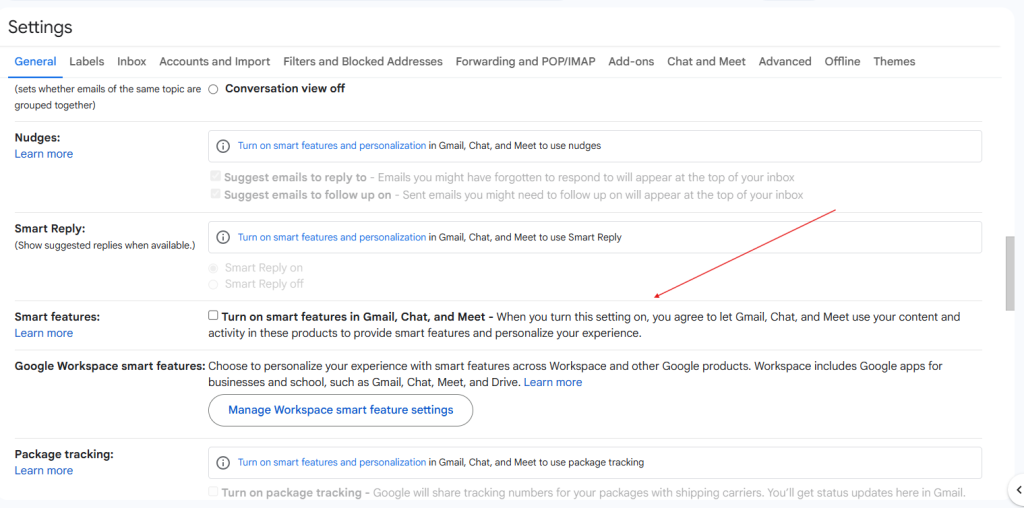
    3. Find Smart features in Gmail, Chat, and Meet
    4. Turn off Smart Features
    5. Click Save changes
    6. Refresh Gmail or sign out and sign back in

    2️⃣ Google Workspace Smart Features

    1. Open Google Account → Data & Privacy
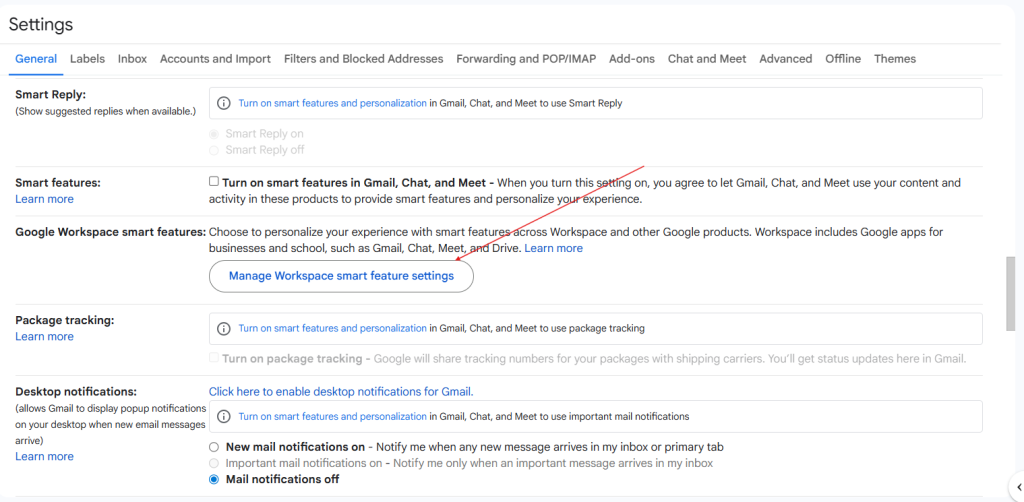
    2. Go to Google Workspace smart features
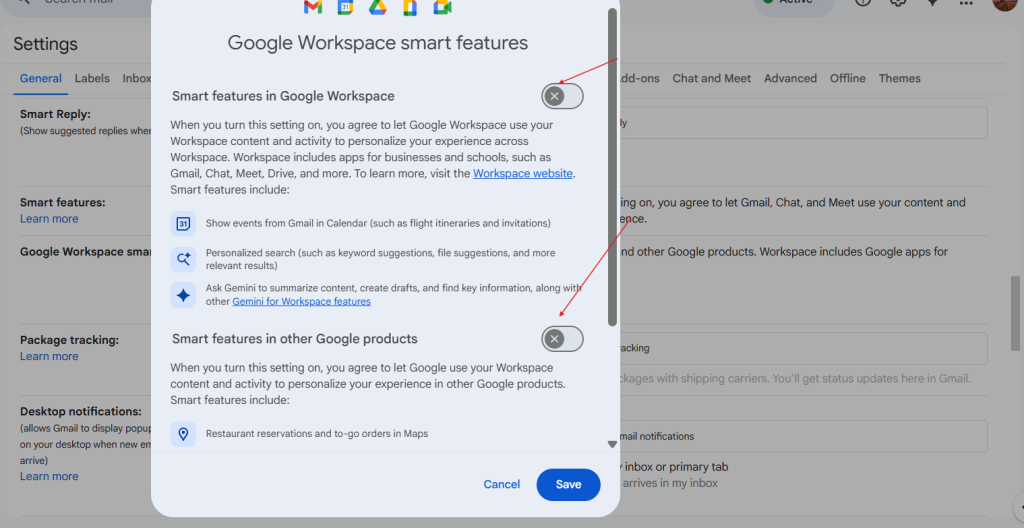
    3. Click Manage Workspace smart feature settings
    4. Disable both:
      • Smart features in Google Workspace
      • Smart features in other Google products
    5. Save changes

    ⚠️ Note:
    Turning off Smart Features will disable conveniences like Smart Compose and automatic inbox categories.


    🧪 Why the Confusion?

    Some viral posts referenced a past lawsuit where Google was fined for collecting Android data even when users opted out.
    However:

    • That lawsuit is not related to Gmail
    • It is not connected to Gemini
    • It involved Web & App Activity, not emails

    Because of this, many people mistakenly combined the two issues.


    🛡️ Final Thoughts

    This situation highlights the importance of regularly reviewing our privacy settings—especially as AI becomes more integrated into the tools we use every day.

    Here’s the bottom line:

    • ✔ Gmail scanning is not new
    • ✔ Gemini now powers some Gmail features
    • ✔ You can choose to opt out
    • ✔ Transparency and awareness are key

    Staying informed helps us protect our privacy without falling into misinformation or unnecessary fear.


    🧭 Want to Stay Safer Online?

    Follow for more breakdowns on:

    • cybersecurity news
    • digital privacy
    • AI ethics
    • practical security tips
    • how to manage your digital footprint

    #CyberSecurity #Google #Gmail #GeminiAI #DataPrivacy #AIEthics #OnlineSafety #TechBlog

  • 🔒 How to Protect Your iPhone: A Step-by-Step Settings Guide

    Your iPhone is powerful and convenient, but many default settings trade your privacy for ease of use. The good news? With a few quick changes, you can make your device much safer without breaking your daily routine.

    Here’s a simple, step-by-step guide you can follow in Settings to harden your iPhone.

    1. Privacy & Tracking

    • Go to Settings → Privacy & Security
    • Turn off Analytics & Improvements (all options).
    • Tap Tracking → disable Allow Apps to Request to Track.
    • Tap Apple Advertising → turn off Personalized Ads.

    2. Safari Security

    • Go to Settings → Safari
    • Enable Block Pop-ups.
    • Turn on Prevent Cross-Site Tracking.
    • Enable Fraudulent Website Warning.
    • Under Hide IP Address, choose From Trackers.
    • At the bottom, enable Advanced Tracking & Fingerprinting Protection → For All Browsing.
    • Bonus: Browse in Private Mode for sensitive sessions.

    3. App Permissions

    • Go to Settings → Apps → [choose app]
    • Turn off Background App Refresh.
    • Set permissions to While Using the App (camera, mic, location).
    • Remove apps you rarely use.

    4. Lock Screen & Passcode

    • Go to Settings → Display & Brightness → Auto-Lock → set to 30 sec–1 min.
    • Go to Settings → Notifications → Show Previews → set to When Unlocked.
    • Go to Settings → Face ID & Passcode
    • Turn off unneeded access under Allow Access When Locked.
    • Make sure Stolen Device Protection is enabled.

    5. Wi-Fi, Bluetooth & AirDrop

    • Go to Settings → Wi-Fi → Edit → remove unused networks.
    • Turn Auto-Join Hotspots to Ask to Join.
    • Keep AirDrop set to Receiving Off (enable Contacts Only when needed).
    • Turn off Bluetooth when not using.

    6. Messages & Calls

    • Go to Settings → Messages
    • Enable Filter Unknown Senders.
    • Turn off Send Read Receipts.
    • Disable Send as SMS.
    • Go to Phone app → Settings → Silence Unknown Callers (or use call filtering tools).

    7. Extra Protection (Optional)

    • Use a VPN + private DNS + ad blocker to hide your traffic from ISPs and trackers.
    • Use DuckDuckGo as your default search engine.
    • If using Mail app → Settings → Mail → Privacy Protection → enable Hide IP Address and Block Remote Content.

    Final Thoughts

    You don’t need to flip every switch at once. Start with the small changes that don’t affect your daily life (like disabling tracking and hiding lock screen previews). Over time, layer on the stricter settings for stronger protection.

    The goal isn’t perfect security — it’s being a harder target than most people. Even a few of these steps will keep your data safer and give you more peace of mind.

    ✨ Tip: Save this post and walk through it with your phone in hand. Your iPhone will thank you later.